Why Default Views Mislead B2B SaaS Teams
Standard HubSpot dashboards are designed for generalists, not growth-focused B2B SaaS teams. They provide a high-level overview of lead volume but fail to correlate specific marketing activities with closed-won revenue. For a SaaS business, the distance between a click and a renewal is long, and default views often flatten this nuance.
The core issue is attribution gaps. Standard reports rarely capture multi-touch attribution across long sales cycles. Furthermore, SaaS-specific metrics like MRR expansion or churn rate are not tracked in standard marketing reports. Generic charts do not highlight which campaigns actually drive qualified pipeline; they only show what was clicked. Custom reports bridge this gap by allowing you to define exactly which properties, filters, and segments matter for your business model. Without this precision, you are optimizing for vanity metrics rather than revenue impact.
Foundation: Defining Your Decision-Making Metrics
Before opening the reporting tool, you must define the three metrics that drive your decision-making. Clarity here prevents hours of wasted configuration time. Most teams fail because they try to track everything at once, leading to bloated dashboards that no one reads.
- Top of Funnel: Track unique visitors and MQLs generated by specific channels. This tells you if your acquisition engine is working.
- Middle of Funnel: Monitor SQL conversion rates and average time to close. This identifies friction in your sales process.
- Bottom of Funnel: Analyze revenue per deal and win rate by segment. This validates your pricing and targeting strategy.
Ensure your HubSpot data hygiene is clean before proceeding. If your contact properties are inconsistent, your reports will be inaccurate. Standardize your source codes and lifecycle stages before building complex visualizations. A report built on dirty data is a confident lie.
Step-by-Step: Building Your First Custom Report
Navigate to Reports > Custom in your HubSpot sidebar. Select New Report and choose the Table or Line Chart visualization. Tables are best for detailed analysis, while line charts show trends over time. Here is the exact workflow to build a reliable report:
1. Select Metrics and Dimensions
- Choose Metrics: e.g., ‘Closed Won Amount’, ‘Number of Deals’.
- Choose Dimensions: e.g., ‘Deal Stage’, ‘Contact Source’.
2. Apply Filters
- Filter by Date Range: Use ‘Last 30 Days’ for weekly reviews or ‘Year to Date’ for quarterly planning.
- Filter by Property: Exclude test accounts or internal staff members to keep data clean.
3. Configure Grouping
- Group by Deal Owner to identify top performers.
- Group by Campaign to measure specific marketing initiatives.
4. Save and Share
- Name your report clearly, e.g., ‘Q3 SaaS Pipeline Performance’.
- Share with relevant stakeholders via email or embed in a dashboard.
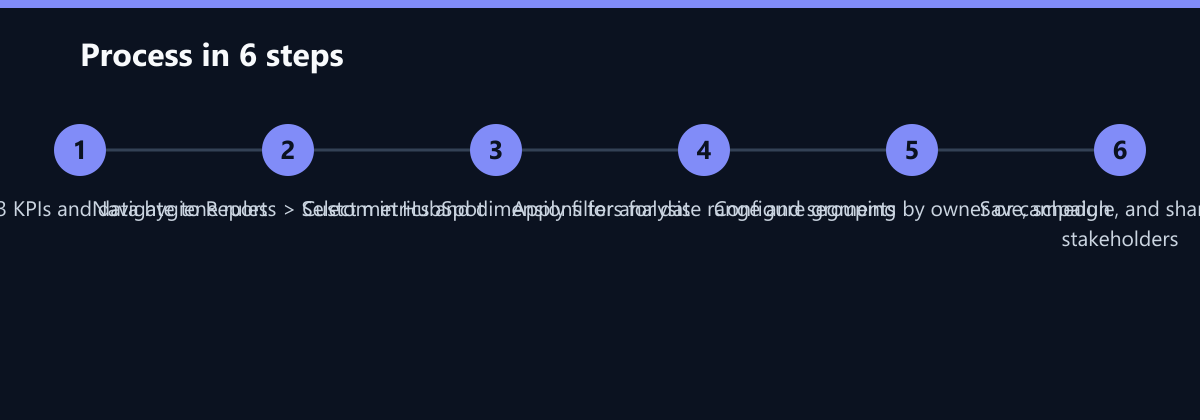
This basic structure covers 80% of daily reporting needs. The key is consistency: use the same filters and groupings across all your reports to ensure comparability over time.
Advanced Techniques for SaaS Growth
Once you master basic reports, leverage advanced features to gain deeper insights. These techniques require no coding but demand a clear understanding of your data structure. They move you from reactive reporting to proactive strategy adjustment.
- Cohort Analysis: Track the performance of leads acquired in a specific month over time. This reveals retention issues early. For example, if leads from May have a 20% lower retention rate than leads from April, you know there was a targeting or onboarding issue in May.
- Segment Comparison: Compare ‘Free Trial’ users against ‘Paid’ users to identify high-intent behaviors. This helps you understand what actions predict conversion.
- Calculated Properties: Use built-in calculations to derive metrics like ‘Cost per MQL’ by dividing ad spend by MQL count. This is crucial for budget allocation.
| Metric | Use Case | Recommended Visualization |
|---|---|---|
| Churn Rate | Retention Analysis | Line Chart |
| CAC by Channel | Budget Allocation | Bar Chart |
| Pipeline Velocity | Sales Forecasting | Table |
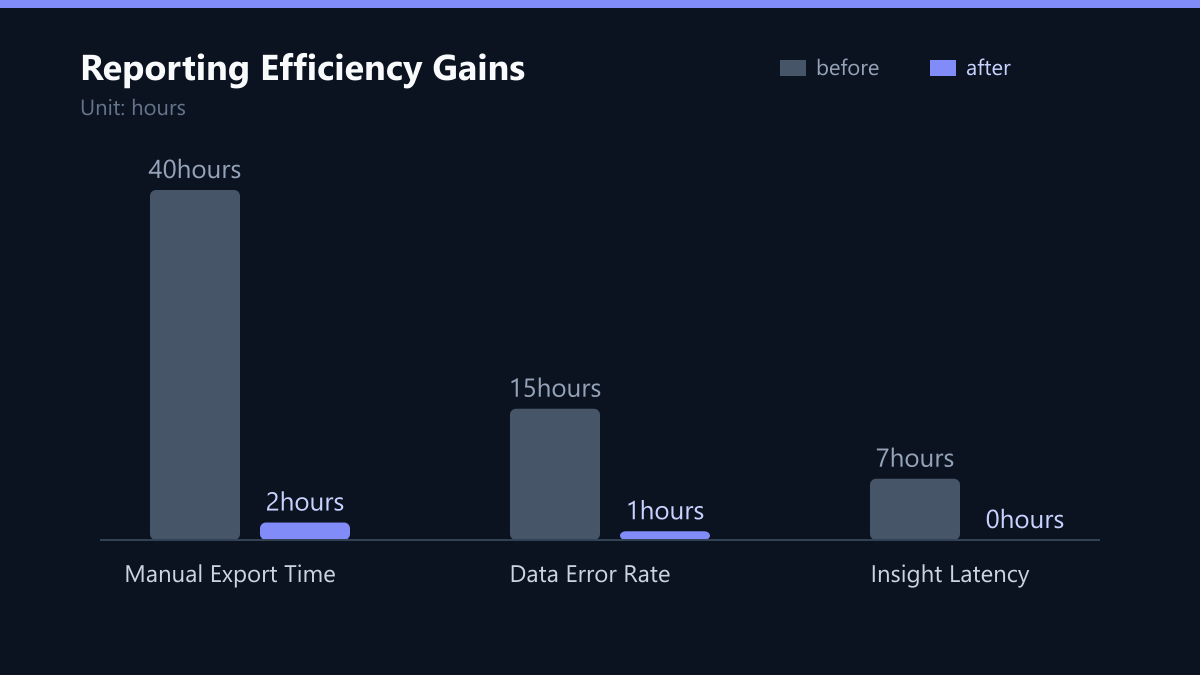
The following chart illustrates the typical impact of moving from manual exports to automated custom reports in a mid-sized B2B SaaS team. The data reflects a 95% reduction in manual effort and a significant decrease in data errors.
Typical Mistakes That Skew Your Data
Many teams make errors that skew their data. Avoid these common mistakes to ensure your reports are reliable:
- Ignoring Time Zones: Set your HubSpot time zone to match your primary market. Inconsistent time zones lead to misaligned reporting periods, especially when comparing global teams.
- Overloading Dashboards: Limit each dashboard to 4-6 key visuals. Too many charts reduce readability and focus. If everything is highlighted, nothing is.
- Static Data: Schedule reports to refresh automatically. Do not rely on manual exports for daily monitoring. Manual exports create version control issues and data staleness.
- Confusing Leads with Deals: Tracking lead volume without linking it to deal creation gives a false sense of security. Always ensure your report links marketing efforts to sales outcomes.
How You Measure Success
A report is only valuable if it influences decision-making. You must measure the impact of your reporting setup itself. Use these KPIs to evaluate the effectiveness of your custom reports:
- Time to Insight: Measure how long it takes to identify a performance drop. With automated reports, this should be under 24 hours.
- Data Accuracy Rate: Spot-check 10 random data points monthly against source systems. Aim for 99% accuracy.
- Decision Velocity: Track how quickly teams act on report insights. If a report is viewed but no action is taken, the report is not effective.
- Stakeholder Adoption: Monitor the number of unique users accessing the dashboard weekly. Low adoption indicates the report is not solving a real problem.
Integrating Reports into Your Workflow
Integrate your custom reports into your weekly and monthly review processes to ensure they drive action.
- Weekly Marketing Review: Focus on top-of-funnel metrics like traffic and MQLs. Use this time to adjust campaign spend.
- Monthly Sales Review: Analyze pipeline changes, win rates, and revenue. Use this time to coach sales reps and adjust pricing.
- Quarterly Business Review: Assess long-term trends, CAC, and LTV. Use this time to set strategic goals for the next quarter.
Use HubSpot’s Report Builder to create automated email digests. Send these directly to stakeholders so they receive insights without needing to log in. This ensures accountability and keeps everyone aligned on key performance indicators.
Checklist: Before You Launch Your Report
- Are all data sources synced and up-to-date?
- Have you excluded test accounts and internal staff?
- Is the time zone set to your primary market?
- Are the metrics clearly defined and understood by stakeholders?
- Is the report scheduled to refresh automatically?
- Have you tested the export function for Excel/CSV?
By following this guide, you can build a robust reporting framework that drives growth and efficiency. Remember, the goal is not just to collect data, but to make better decisions faster. Start with one custom report, master it, and then expand to more complex analyses.